
Help & Guides
Quick reference for Orgix web apps and the mobile client. Sign in at auth.orgixapp.com — one identity for People, CRM, and mobile.
People (people.orgixapp.com)
HRIS web app — directory, attendance, leave, payroll, and admin
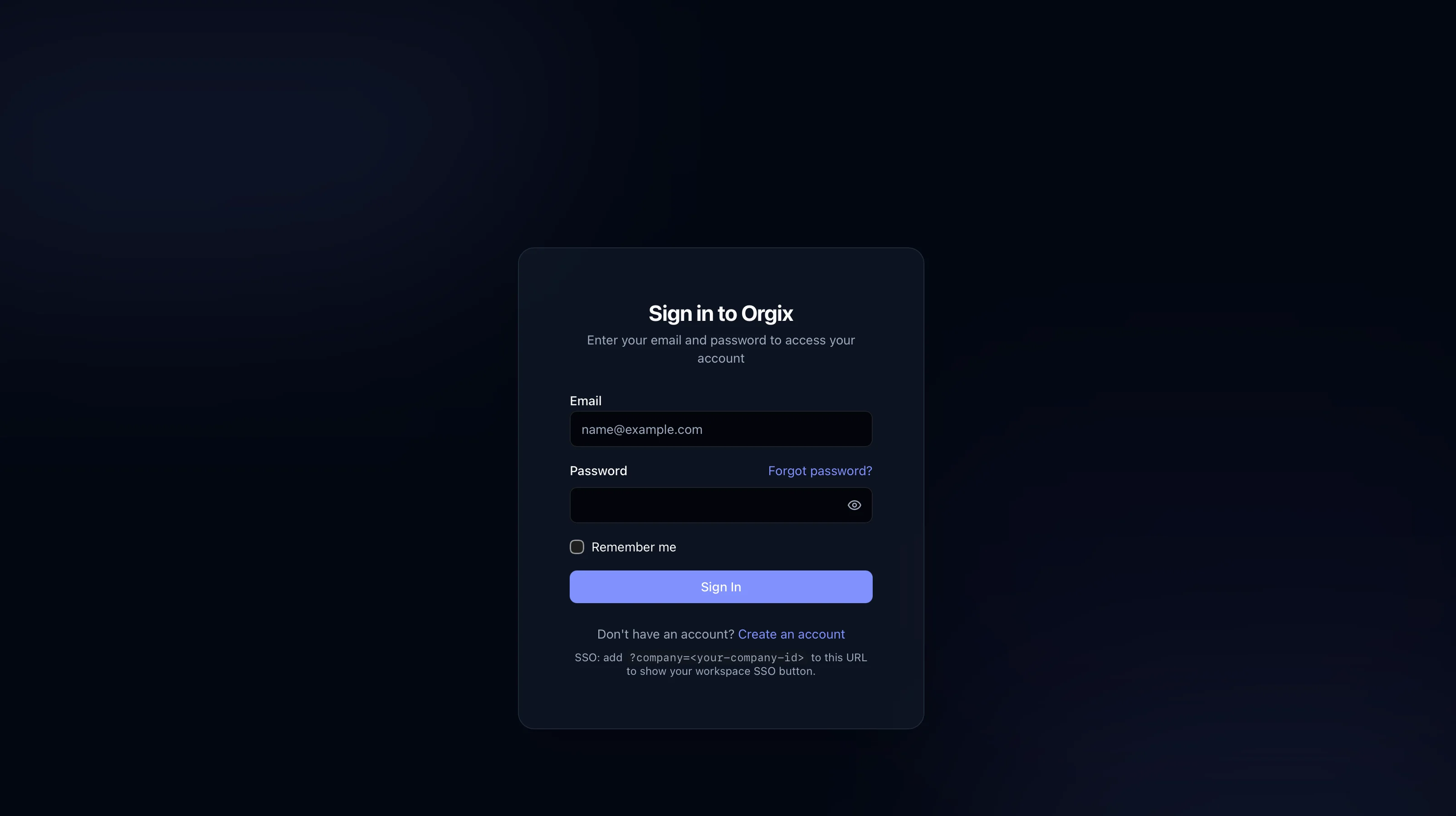
Getting Started
Visit people.orgixapp.com and sign in with your email and password. New users can create an account via "Create account". Admins sign in with the email address used during workspace setup, e.g. admin@yourcompany.com.
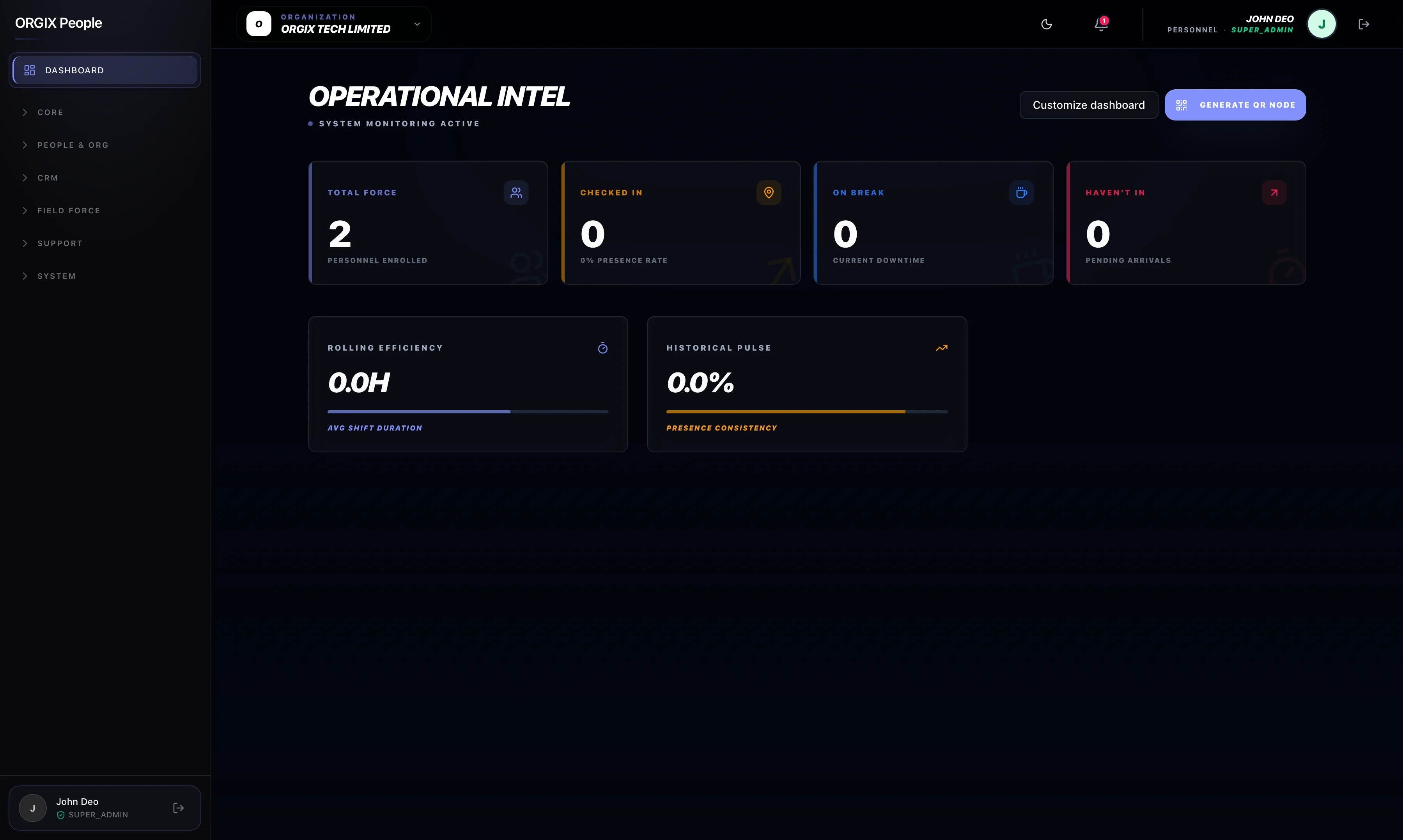
Dashboard
Overview of your organization's attendance, team activity, and key metrics. Switch between organizations from the header dropdown if you belong to multiple.
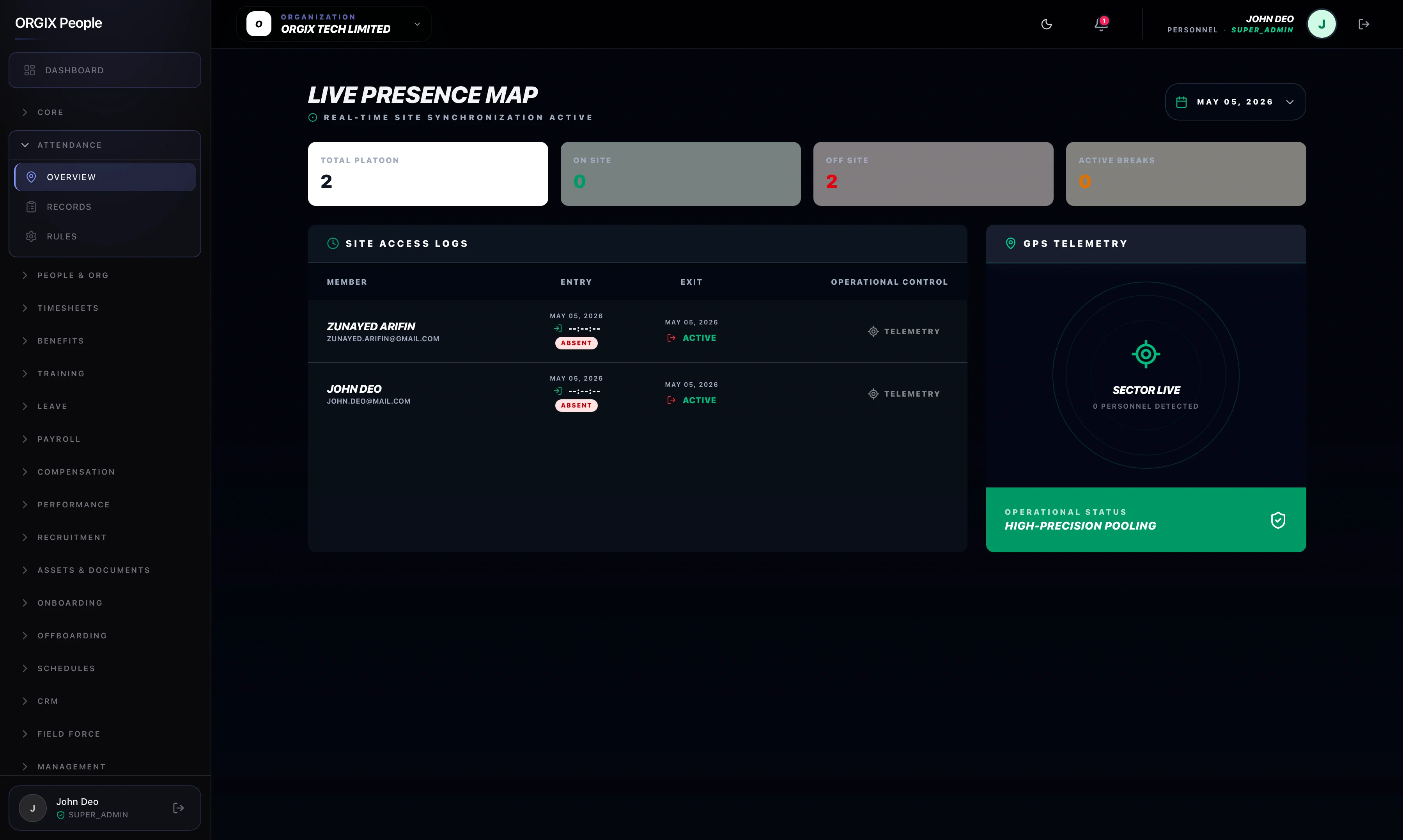
Attendance
View live presence maps and site access logs. Check-ins and check-outs from the mobile app appear here in real time.
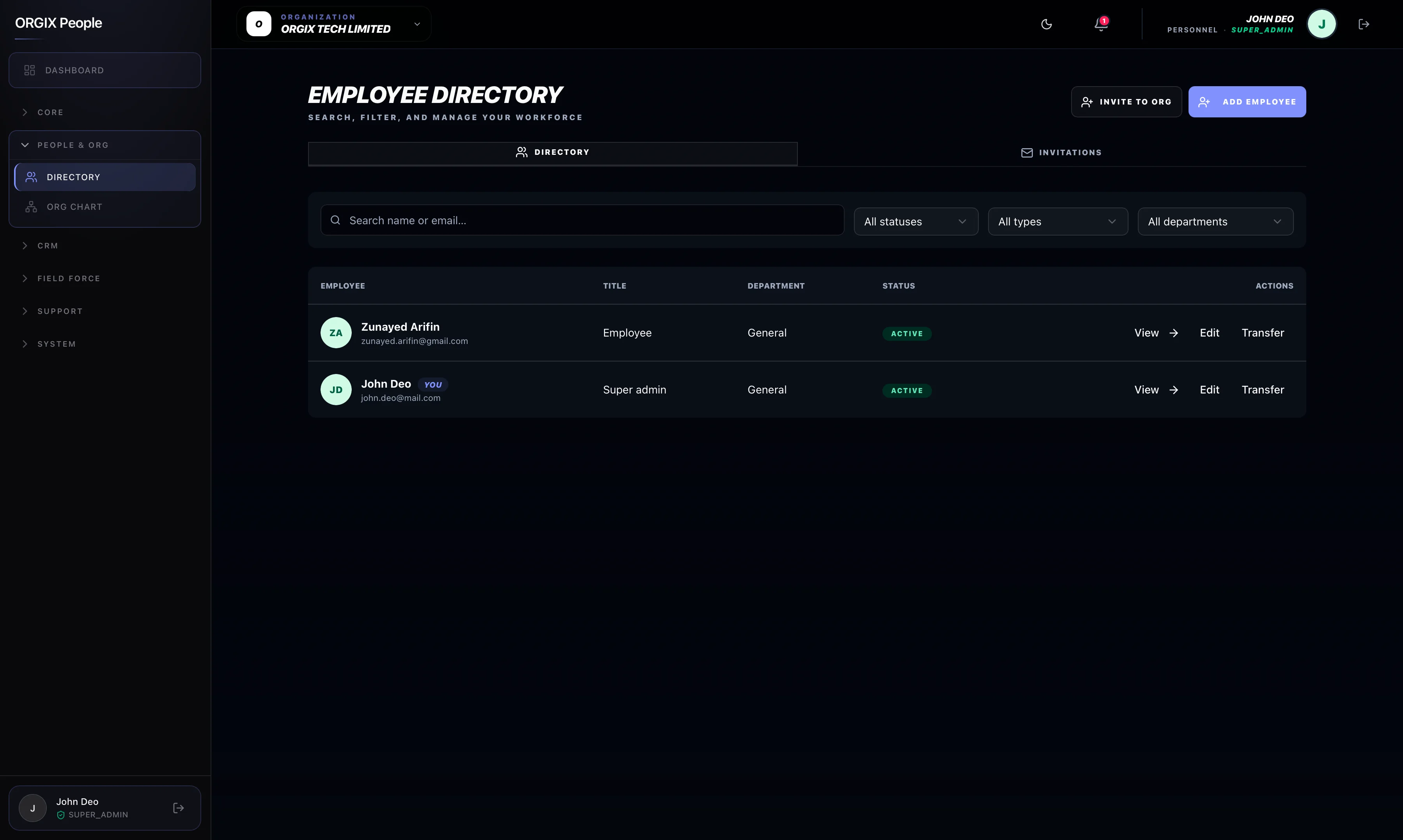
Invite New Users
From an Admin or Super Admin account: go to the People tab, click the Recruit Personnel (invite user) floating button, search for the user, set their role, and send the invitation. If you have no slots available, you'll see a prompt to update your slots — after updating, you can follow the same steps.
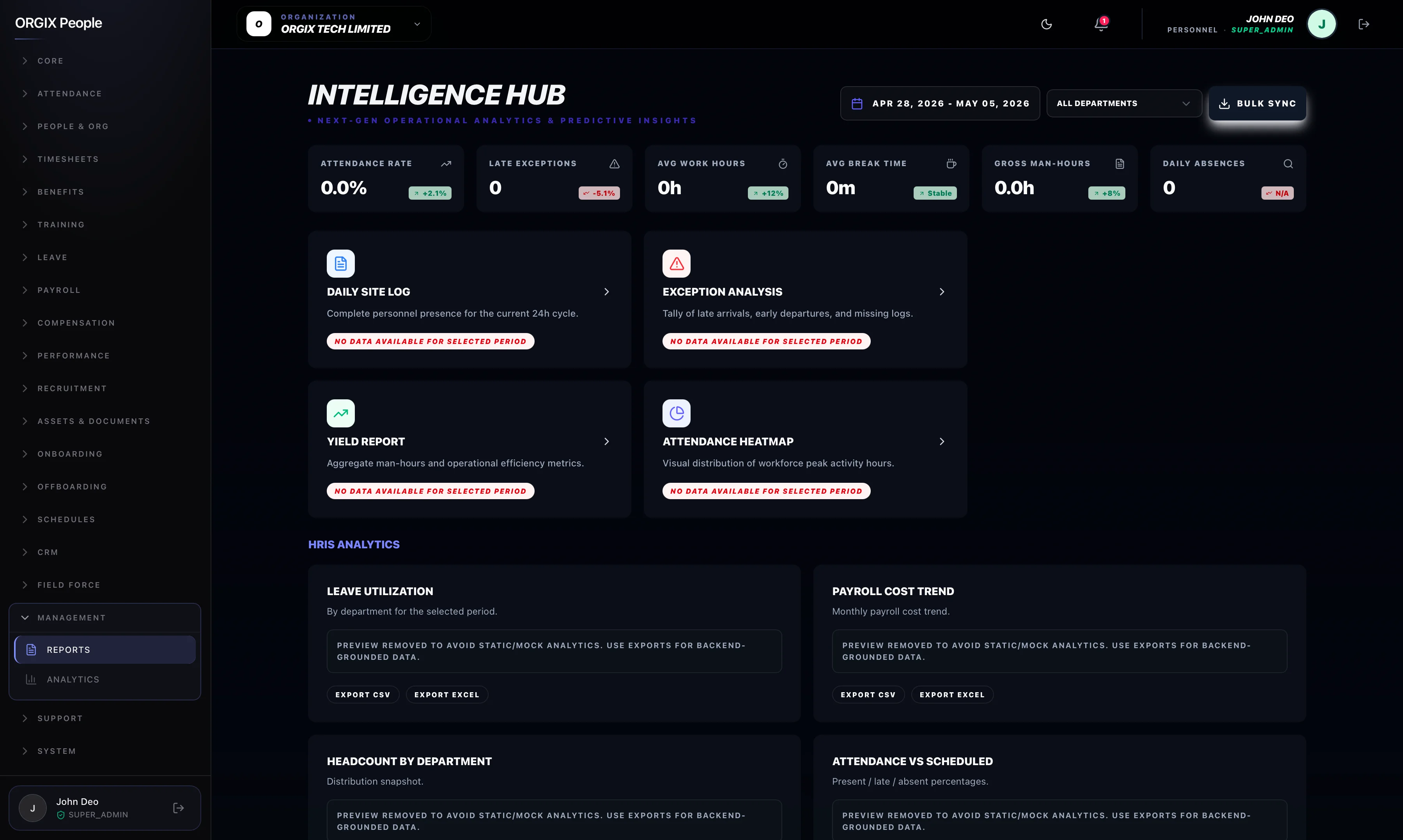
Attendance Summary Report
Go to the Reports section, select Attendance Summary, then click the Download button at the top. This downloads the attendance report for the selected date range and options. Export to CSV or XLSX as needed.
Settings
Configure organization settings, attendance rules, and system preferences.
Orgix Mobile App
iOS & Android — for employees
Selfie Check-in / Check-out
Similar to biometric verification — the app pops up the camera, you take a photo, then submit. That's it. No biometric data is stored. Use this for check-in and check-out to verify your identity.
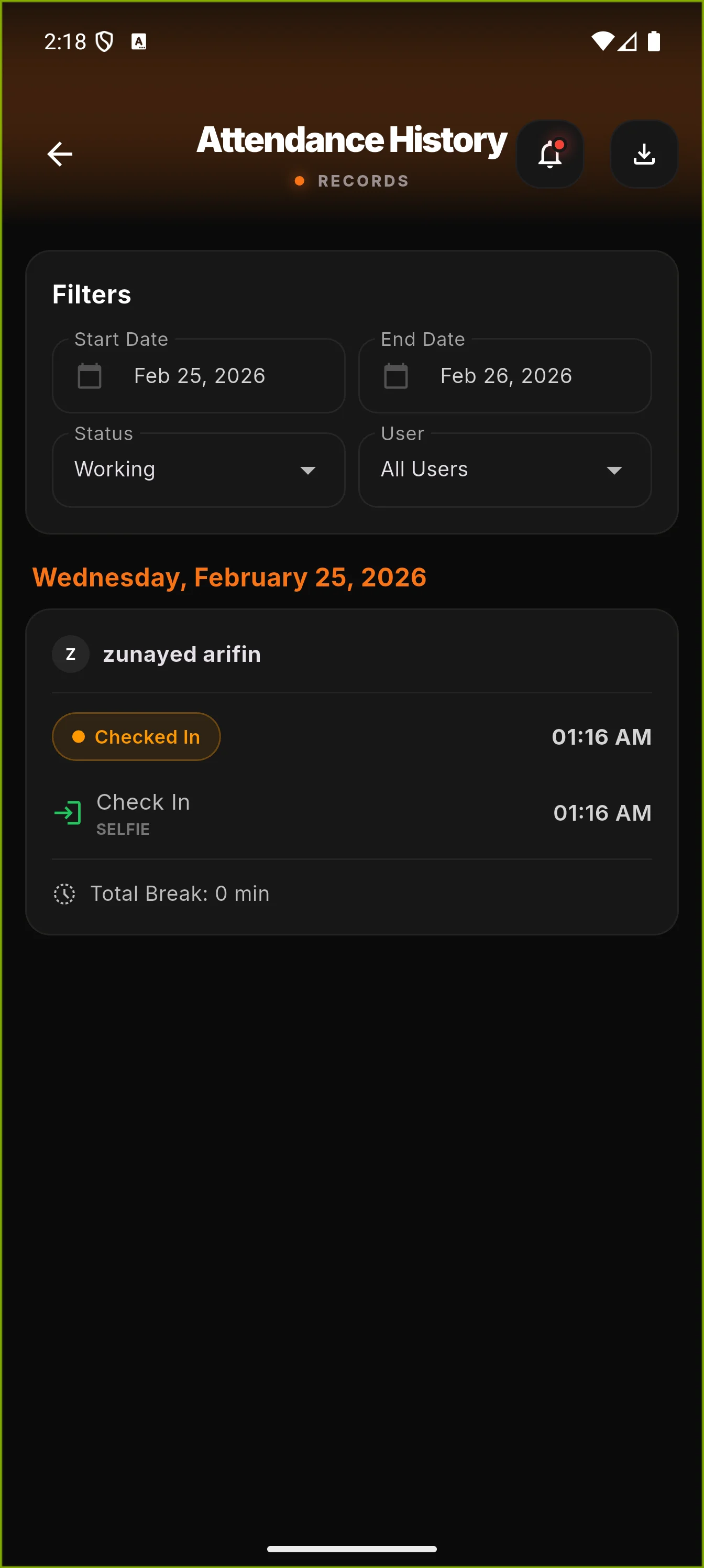
Attendance Summary Report (Mobile)
On the Attendance History screen, use the filters (date range, status, user) to narrow results, then tap the Download button at the top to export the attendance report for the selected options.
QR Code Check-in / Check-out
If your organization uses QR codes, scan the code at your workplace to record attendance. Works alongside selfie verification for added security.
Location & Geofencing
GPS location is captured only during check-in and check-out. If geofencing is enabled, you must be within the designated area to record attendance.
Notifications
Receive invitations, attendance reminders, and important updates. Enable push notifications in your device settings for the best experience.
Multiple Organizations
If you belong to more than one organization, use the company switcher to change context. Attendance and reports are scoped to the active organization.
Need more help?
Screenshots show sample data. Personal information is redacted for privacy. Reach out for support if you need assistance.
Contact us →